How to Update a Nokta Legend Metal Detector
To update a Nokta Legend, connect it by USB to a computer running Nokta's update software, confirm the current version, and keep power and the cable connected until the install finishes. Back up your settings when possible, use a charged battery, and do not disconnect the detector during the update.
On this page (9 sections)
- How to update Nokta Legend software step by step
- What should you check before you start the update?
- How do you update Nokta Legend on a computer?
- What if your Nokta Legend update fails or freezes?
- How do you know the update worked after you install it?
- Which Nokta models use a similar update process?
- How do you protect your ears and hands during test hunts?
- How often should you update Nokta Legend firmware?
- What mistakes should you avoid when you update a Nokta Legend?
To update a Nokta Legend, connect it by USB to a computer running Nokta's update software, check the version, and keep the detector powered and connected until the install completes. That basic order prevents most failed installs.
This guide explains how to update Nokta Legend software safely.
A firmware update is a software change inside the detector. It can fix bugs, change how menus work, or add features.
It does not change the coil, repair a damaged cable, or make a weak signal stronger in every soil.
How to update Nokta Legend software step by step
The safe sequence is prepare, connect, confirm, install, and check. Read the manual for your exact Legend model first, because button layouts and menu names can vary by version.
- Charge the battery and note your current settings.
- Download the update tool and the correct Legend file from Nokta.
- Connect the detector with a direct USB cable, not through a hub if you can avoid it.
- Run the updater and follow its prompts in order.
- Wait for the completion message before you disconnect anything.
- Power cycle the detector and test each main mode on the surface.
Keep the computer awake during the install. Turn off sleep settings and use a laptop or desktop that will not run low on battery.
Do not start a Nokta Legend update in rain, at the beach, or with wet hands. Do the job indoors at a dry table.
What should you check before you start the update?
Check the battery, cable, computer, and current version before you press install. Those four checks catch most problems before they reach the detector.
Charge the battery fully, or use the power source Nokta specifies for updating. A detector that loses power mid-install can end up in a recovery state.
Use the cable that came with your detector when you have it. If you use another cable, pick a short, undamaged data cable and test that the computer sees the detector before you open the updater.
A cable that only charges will not update software.
Write down settings you care about, such as sensitivity, discrimination pattern, tones, and ground balance habits. Check the version number on the detector and compare it with the version you downloaded.
How do you update Nokta Legend on a computer?
Use Nokta's official updater on a Windows or Mac computer that meets its requirements. Download files only from Nokta's site or the dealer page Nokta links to for support.
Open the updater, connect the Legend, and let the software identify the detector. It should show the current version and the target version.
If it shows nothing, change the USB port and try a different data cable.
Follow the prompts exactly. When the software asks you to confirm the install, make sure the detector is sealed, dry, and not moving.
Watch for progress bars and completion messages. The detector may reboot or stay quiet for a bit.
Wait until the computer says the update is complete. After it finishes, disconnect the cable, power the detector on, and confirm the version now matches the file you installed.
What if your Nokta Legend update fails or freezes?
Stop, keep it connected, and follow Nokta's recovery steps instead of unplugging it. An interrupted update is the main risk, and pulling the cable early makes it worse.
If the progress bar stops, give it a few minutes. Some installs pause while the detector writes a section of software.
Check that the cable did not slip and the computer did not go to sleep.
If the updater gives an error, read it carefully. It may point to a wrong file, a loose cable, or a low battery.
Fix that one cause, then restart the updater. Do not load a file meant for another Nokta model.
If the detector will not power on after an interrupted install, leave it connected and follow the recovery procedure in Nokta's support material for the Legend. Contact Nokta support or your dealer if the detector does not respond to the official steps.
How do you know the update worked after you install it?
Confirm the version, test each mode, and run a short hunt before you trust the new software. A completed install should show the new version number in the menu.
Power on the detector and check the version display. Then run an air test with a coin, a ring, and a piece of trash foil.
Test ground balance, sensitivity, and discrimination in a quiet spot. Raise sensitivity until you hear noise, then back off a little.
That check tells you the detector is stable after the update.
Take a short walk in a familiar place. Notice if menus feel different, if a favorite setting moved, or if a tone changed.
Read about what you can find with a metal detector if you want to plan that first test hunt. A known patch of ground with coins or pull tabs gives you a fast way to judge changes.
Which Nokta models use a similar update process?
Nokta models share some steps, but each model uses its own file and menus. A Legend update file will not work on another model, even from the same brand.
If you also own a Nokta Makro Simplex Plus, read how to update a Nokta Makro Simplex Plus for that detector's version check and cable steps. Nokta's newer Triple Score follows its own path, so see how to update the Nokta Triple Score if that is the detector in your bag.
Other brands use different tools entirely. For Minelab, our guides to minelab metal detector updates, how to update a Minelab Manticore, and how to update the Minelab Equinox 900 cover those systems.
XP owners can use our guide to xp metal detectors update.
What should you do when you own more than one detector?
Keep a separate folder for each detector's updater and update file. Name the folder with the exact model, and keep a note of the last version you installed.
That habit prevents the most common error in multi-detector households.
Store the download until you have tested the update.
How do you protect your ears and hands during test hunts?
Use headphones for test hunts and gloves for digging, so update checks stay comfortable. You will spend more time listening and bending after an update, so small comfort items matter.
Headphones help you hear faint target changes after new software loads. The Bounty Hunter HEAD-PL uses a 1/4-inch stereo plug and padded earcups, and Bounty Hunter says it works with most Bounty Hunter detectors except the Junior version.
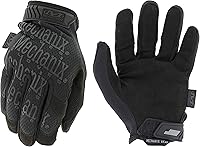
Gloves protect your hands when you dig the test targets that prove the update worked. The Mechanix Wear Original Tactical Covert Gloves, Medium, have a 0.8 mm synthetic leather palm and a Freedom-Flex cuff for movement.
You still need a detector for the test itself. The Bounty Hunter TK4 Tracker IV has an 8-inch waterproof coil, three detection modes, and a rated IP54 enclosure.
Use those items as general test gear, not as a claim that they fix a failed update.
How often should you update Nokta Legend firmware?
Update when Nokta releases a version that fixes a bug you have or adds a feature you want. There is no fixed schedule that fits every owner.
Read the change notes before you download. If the update fixes a freezing issue you have seen, install it soon.
If it only changes a menu label you never use, you can wait until you have a calm day at home.
Check Nokta's support page every few months, or before a trip, a beach season, or a group hunt. Keep a simple log with the date, old version, new version, and any setting that reset.
Learn what a metal detector beep means if your post-update test hunt sounds different from before. A tone change may be a new setting, not a fault.
What mistakes should you avoid when you update a Nokta Legend?
The big mistakes are rushing, using the wrong file, and interrupting power. Each one is easy to avoid with a slow setup.
Do not update with a low battery, a borrowed cable you have not tested, or a computer that keeps sleeping. Do not download files from random forums.
Do not start the install while the detector is wet.
Do not press buttons to speed things up. The updater controls the sequence.
If a screen looks stuck, wait, read the message, and check the cable before you touch anything.
Do not skip the post-update test. Check the version, restore settings, and run a short hunt in a familiar spot.
For how to update Nokta Legend software again in the future, use the same routine: charge, connect, confirm the version, install, and test.
Frequently asked questions
How do I know if my Nokta Legend needs an update?
Check the version on the detector and compare it with the latest version Nokta publishes for the Legend. Update if you want a bug fix or a new feature, and skip it if your detector works well and you prefer not to change settings you already know.
Can I update a Nokta Legend on a phone or tablet?
Use a computer that Nokta supports for the Legend update tool. A phone or tablet may work with an adapter in some cases, but a laptop or desktop gives you a steadier USB connection, easier file handling, and a clearer view of progress messages.
What should I do if a Legend update stops halfway?
Leave the detector connected and powered if it still responds, then follow Nokta's recovery steps for an interrupted update. Do not pull the cable, switch the detector off repeatedly, or start a second update until you know the detector is ready.