How to Update the Nokta Triple Score
Use Nokta’s official update instructions and software for the Triple Score, then follow each on-screen step. Confirm the update is meant for your exact detector before connecting it.
On this page (8 sections)
- Where can you find a Triple Score update?
- What should you check before updating?
- How do you install Triple Score firmware?
- What if the update utility does not recognize the detector?
- What if an update stops or the detector behaves differently?
- Do you need to update the detector before using it?
- How can you reduce the chance of update problems?
- What is the safest way to update a Nokta Triple Score?
To update the Nokta Triple Score, use Nokta’s official update instructions and software for that exact model, and follow each step shown on screen. Confirm that the firmware is compatible before connecting the detector, and keep it connected until the update finishes.
Firmware updates can add changes or address issues, but installing the wrong file or interrupting an update can create problems. Check the Triple Score’s current support information before you begin, since software, files, and instructions may change.
Where can you find a Triple Score update?
Start with Nokta’s official Triple Score support resources. Find the update instructions and firmware specifically labeled for the Triple Score, and read any release notes before downloading or connecting the detector.
Nokta’s official website is the safest starting point for product support. Avoid firmware files shared by forums or third-party download sites, even when a filename looks relevant.
An update for another Nokta detector may use a similar process, but that does not make its firmware interchangeable. If you are comparing model-specific instructions, see how to update the Nokta Simplex Ultra and how to update a Nokta Legend metal detector.
What should you check before updating?
Before you start, verify the model, the firmware version, and the update requirements on Nokta’s current instructions. Make sure the detector and computer are ready, and set aside enough time to complete the process without rushing.
Check the exact model name on the detector and compare it with the firmware’s supported model. If the update page names a required program, operating system, cable, or preparation step, follow that guidance rather than guessing.
Save or note any detector settings you may want to restore afterward, if Nokta’s manual recommends doing so. Don’t assume settings will remain unchanged unless the update instructions say they will.
For a separate Nokta model, Nokta Makro Simplex software update instructions can help explain why you should follow the steps for the model you own. XP owners can use our guide to an XP metal detectors update for that brand’s process.
How do you install Triple Score firmware?
Follow Nokta’s current update sequence from start to finish. Use the official utility and compatible firmware, connect the detector as instructed, and wait for the program to report completion before unplugging anything.
A careful general workflow is:
- Read the Triple Score update notes and requirements.
- Download the official update utility or firmware named in those instructions.
- Prepare the detector and computer as directed by Nokta.
- Connect the detector using the specified cable and port.
- Select or confirm the update meant for the Triple Score.
- Keep the connection stable while the update runs.
- Wait for the completion message, then disconnect only as instructed.
- Restart the detector and confirm it operates normally.
These steps are a checklist, not a substitute for Nokta’s exact instructions. Follow the official sequence if it differs, and do not force an update when the utility does not recognize the detector.
The Bounty Hunter TK4 Tracker IV is a separate detector with analog controls and three detection modes. It is not Triple Score update equipment or a source of Triple Score firmware.
What if the update utility does not recognize the detector?
Stop and check the connection before trying again. Confirm that you followed Nokta’s connection steps, inspect the cable and ports, and use the utility’s troubleshooting guidance for the Triple Score.
If the detector still does not appear, close the update program and restart the computer only if Nokta’s instructions allow it. Try another USB port if recommended, and check that the utility supports your computer’s operating system.
Don’t install a driver or firmware from an unofficial source just to make the connection work. If the supported troubleshooting steps fail, contact Nokta support with the detector model, computer operating system, utility version, and any error message.
What if an update stops or the detector behaves differently?
Do not unplug the detector while the utility says an update is in progress. If progress appears stalled, follow Nokta’s recovery instructions or contact support before restarting or disconnecting the device.
If the update reports an error, write down the exact message and note what step was underway. Avoid repeating the installation with a different firmware file or trying instructions intended for another Nokta model.
After a completed update, check that the detector starts and responds as expected. If settings or controls seem different, consult the current manual and release notes before changing multiple options.
These Bounty Hunter headphones have a 1/4-inch stereo plug and are described as compatible with most Bounty Hunter detectors, excluding the Junior. They are unrelated to Nokta’s update process, so check the Triple Score’s own manual for audio accessories.
Do you need to update the detector before using it?
You do not need to update before every outing. Install a compatible update when Nokta provides one that applies to your model and its changes matter to you, or when official support directs you to do so.
Read the release notes to see what changed. If the detector is working and an update offers no useful change, you can wait rather than taking on an unnecessary update.
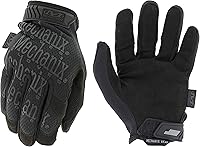
Mechanix Wear Original Tactical Covert Gloves have a synthetic leather palm and touchscreen capability. They may suit general gear handling, but they are not part of the update procedure and should not be used to operate cables or controls if they limit your grip.
How can you reduce the chance of update problems?
Use the correct firmware, a stable connection, and Nokta’s own steps. Avoid making changes to the computer or detector while the update is running, and keep the installation files from unofficial sources off your system.
Before starting, close unnecessary programs if Nokta recommends it and connect the computer to reliable power. Do not let the computer sleep or shut down during the process.
Afterward, keep a note of the installed version if Nokta’s utility displays it. That detail can help support staff if you later need help.
What is the safest way to update a Nokta Triple Score?
Use the Triple Score’s official support instructions as your source for compatible firmware and installation steps. Confirm the model, read the release notes, and keep the detector connected until the utility confirms completion.
If the computer does not recognize the detector or an error appears, stop and use Nokta’s troubleshooting guidance. For another Nokta model, follow its own update guide instead of reusing Triple Score firmware.
Frequently asked questions
How do I update the Nokta Triple Score?
Use Nokta’s official update instructions and software for the Triple Score, and follow the steps shown there. Check that the update applies to your exact detector, prepare a reliable computer connection, and avoid disconnecting the detector while the update is running.
Can I use another Nokta detector's firmware on the Triple Score?
No. Firmware and update instructions can differ by model, so use only files and steps that Nokta identifies for the Triple Score.
Instructions for the Simplex Ultra or Legend may be useful as examples of model-specific updates, but they are not a substitute for Triple Score guidance.
What should I do if my computer does not recognize the Triple Score?
Check the cable and connection, then follow Nokta’s current troubleshooting steps for the Triple Score update utility. Try another USB port if the instructions allow it, and avoid installing firmware from unofficial sources or repeatedly disconnecting the detector during an update.
Should I update my Triple Score before every detecting trip?
No, an update is only needed when Nokta provides compatible firmware that you want to install or that addresses an issue relevant to you. Check the release information and update instructions first, then leave a working detector alone if the update offers no useful change.